RDP port 3389: change, filter and secure a Windows VPS
Par Benjamin Dayan · PDG
· Mis à jour le November 13, 2026 · Lecture 7 min
Contents
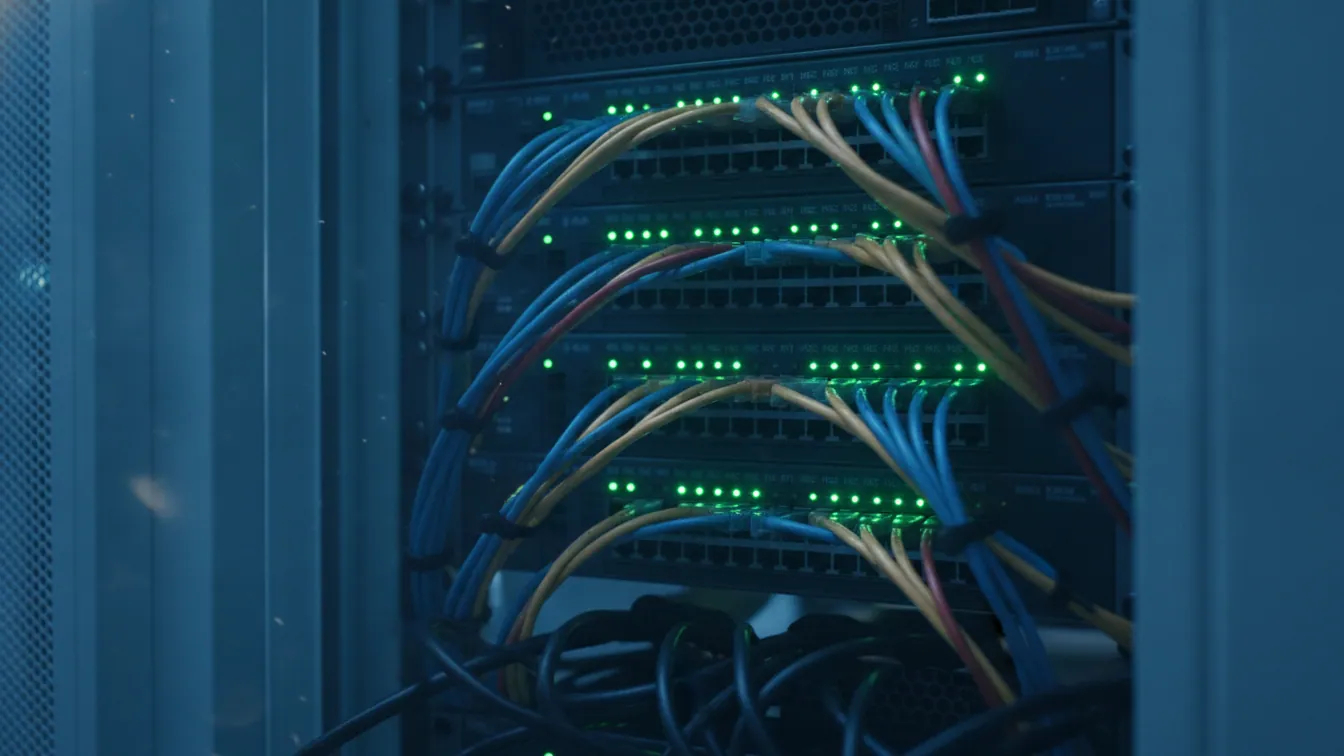
The default RDP port is 3389, over both TCP and UDP. To change it without locking yourself out, open the new port in the firewall first, edit the registry, restart the service and test. Only then close 3389. Changing the port cuts down on scan noise, but it doesn't protect you on its own.
If you haven't chosen a machine yet, see what cheap VPS plans actually offer before you expose one to the internet.
In brief
- RDP listens on port 3389, over TCP (required) and UDP (optional, smoother).
- The safe order is firewall rule, registry key, service restart, test, then close 3389.
- The most effective measure is filtering by IP address or using a VPN, not changing the port.
- NLA, account lockout, a long password and monitoring event 4625 all help stop brute-force attacks.
- Your host's anti-DDoS protects the network, not RDP authentication.
What is the default RDP port?
RDP listens on port 3389, over TCP and UDP alike. Microsoft lists both protocols for the TermService service (Remote Desktop Services). UDP transport has existed since RDP 8.0, introduced with Windows 8 and Windows Server 2012.
| Protocol | Port | Role |
|---|---|---|
| TCP | 3389 | Connection and authentication, required |
| UDP | 3389 | Optional transport, smoother when latency is high |
Port 3389 is the favourite target of automated scans. A freshly delivered Windows VPS soon receives login attempts, so lock it down straight away.
Changing the RDP port on Windows Server without locking yourself out
Warning. Keep a rescue console to hand before you touch the port. Check in your client area whether a VNC or KVM-style console is available for your VPS. If not, let the team know on Discord before you start. If you'd rather not manage that risk, the comparison game server with a panel, or a VPS? will help you decide.
Choosing a new port
Avoid ports below 1024, which are reserved for well-known services, and any already used by your games: 30120 for FiveM, for example. Stay below 49152 too, because the 49152-65535 range is Windows' dynamic port range. We'll use 33890 here.
Get-NetTCPConnection -LocalPort 33890 -ErrorAction SilentlyContinue
netstat -ano | findstr :33890
netsh int ipv4 show dynamicport tcp
If the first two commands return nothing, the port is free. The third shows the dynamic range.
Step 1: open the new port in the firewall
This step comes before the registry. If you changed the port first, the firewall would block the new connection and you'd be left outside.
New-NetFirewallRule -DisplayName "Custom RDP TCP 33890" -Direction Inbound -Protocol TCP -LocalPort 33890 -Action Allow
New-NetFirewallRule -DisplayName "Custom RDP UDP 33890" -Direction Inbound -Protocol UDP -LocalPort 33890 -Action Allow
Step 2: edit the PortNumber registry key
The Microsoft documentation places the port in HKLM\SYSTEM\CurrentControlSet\Control\Terminal Server\WinStations\RDP-Tcp, in the DWORD value PortNumber. In regedit, select the Decimal base, otherwise your value will be read as hexadecimal. In PowerShell, that trap doesn't exist:
Set-ItemProperty -Path "HKLM:\SYSTEM\CurrentControlSet\Control\Terminal Server\WinStations\RDP-Tcp" -Name PortNumber -Value 33890
Get-ItemProperty -Path "HKLM:\SYSTEM\CurrentControlSet\Control\Terminal Server\WinStations\RDP-Tcp" -Name PortNumber
Step 3: restart the service and test
Restart-Service TermService -Force
Your RDP session will drop, which is normal. If the service doesn't come back, Restart-Computer does the same job. From your own PC, test the port, then connect using the IP:port syntax.
Test-NetConnection 203.0.113.10 -Port 33890
mstsc /v:203.0.113.10:33890
Once you see TcpTestSucceeded : True and a session opens, you can close 3389. The built-in "Remote Desktop" rules still point at the old port. The commands below find them by port number, whatever display language Windows is using:
Get-NetFirewallPortFilter -Protocol TCP | Where-Object LocalPort -eq 3389 | Get-NetFirewallRule | Disable-NetFirewallRule
Get-NetFirewallPortFilter -Protocol UDP | Where-Object LocalPort -eq 3389 | Get-NetFirewallRule | Disable-NetFirewallRule
Limiting RDP access to specific IP addresses
This is the most effective measure: a bot that can't reach the port can't try anything. In Windows Defender Firewall with Advanced Security, open the rule, go to the Scope tab and find Remote IP address. In PowerShell:
Set-NetFirewallRule -DisplayName "Custom RDP TCP 33890" -RemoteAddress "203.0.113.25","198.51.100.0/24"
Set-NetFirewallRule -DisplayName "Custom RDP UDP 33890" -RemoteAddress "203.0.113.25","198.51.100.0/24"
Check your public IP before applying the rule. Then keep your session open and test from a second window.
The classic trap is a dynamic home IP. You have three options. You can allow your ISP's range, which is broader and less precise. You can set up a personal VPN on the VPS and allow only its subnet. Or you can go through an RD Gateway on port 443, which is heavier to install (a Windows role and a certificate).
Blocking brute-force attacks on RDP
These are the measures that matter once IP filtering is in place, ranked by impact.
- NLA enabled. Authentication happens before a session is opened, which spares the server's resources when bots come knocking. To check,
(Get-ItemProperty "HKLM:\SYSTEM\CurrentControlSet\Control\Terminal Server\WinStations\RDP-Tcp").UserAuthenticationshould return 1. - Account lockout. In
secpol.msc, under Account Policies and then Account Lockout Policy, set the threshold, duration and reset counter. The default threshold depends on the Windows version (on Windows Server it is generally 0, meaning no lockout), so runnet accountsto see where you stand, then set it. For example:net accounts /lockoutthreshold:5 /lockoutduration:15 /lockoutwindow:15. The limitation is that an attacker can lock your account on purpose, which is why IP filtering matters. - A long, unique password, with the Administrator account renamed (
Rename-LocalUser -Name "Administrator" -NewName "your_name") or disabled in favour of another admin account. - Monitoring the Security log. Event ID 4625 flags a failed logon and 4624 a successful one. To count failures per IP over the last 24 hours:
Get-WinEvent -FilterHashtable @{LogName='Security'; Id=4625; StartTime=(Get-Date).AddDays(-1)} -ErrorAction SilentlyContinue |
  ForEach-Object { $_.Properties[19].Value } |
  Group-Object | Sort-Object Count -Descending | Select-Object -First 10 Count, Name
- Automatic banning. A scheduled task triggered by event 4625 can add abusive IPs to a block rule, and open-source tools do the same thing. Exclude your own IP, or you'll ban yourself.
- Windows Update kept current. BlueKeep (CVE-2019-0708) affected Windows 7 and Windows Server 2008/2008 R2: an RDP flaw exploitable without credentials. Recent versions aren't affected, but the lesson still holds.
Changing the port reduces automated attempts. It doesn't replace any of these measures.
Should you open the RDP port over UDP as well as TCP?
TCP is essential. UDP is optional but recommended: it makes sessions smoother when latency or packet loss climbs. Without it, the client falls back to TCP alone, and the session feels slightly less responsive.
Changing PortNumber also applies to the UDP listener, as this administrator found: the UDP port follows the TCP port. Check it on your own machine:
Get-NetUDPEndpoint -LocalPort 33890
To force or forbid UDP, the Group Policy setting is called "Select RDP transport protocols". You'll find it under Computer Configuration, Administrative Templates, Windows Components, Remote Desktop Services, Remote Desktop Session Host, Connections. On the client side, the connection quality icon in the mstsc connection bar reports the quality of the connection. To check that UDP is active, look at the server with the command above.
Don't need Windows? A Linux VPS is managed over SSH and spares you all this RDP exposure.
Anti-DDoS and RDP security: who protects what?
Your host's anti-DDoS absorbs volumetric attacks upstream, at network level: 2 Tbps is included on Fly-Serv VPS plans. It will not, however, block a bot that tests a password every ten seconds, because that traffic looks like a normal connection. The two layers complement each other. Anti-DDoS keeps the machine reachable, and your Windows configuration keeps the door shut.
Recap checklist:
- New port open, old 3389 closed, test passed.
- Access limited by IP, VPN or RD Gateway.
- NLA enabled.
- Account lockout configured.
- Long password, Administrator account renamed.
- Event 4625 monitored, Windows up to date.
Deploying a Windows VPS with RDP locked down from day one
Run through the procedure on a brand-new machine, before you install your games. You start from a clean configuration, with a rescue console to hand if a step goes wrong. On the hardware side, your Windows VPS is delivered in under 60 seconds. The Premium range runs on a Ryzen 9 7950X3D with DDR5 and NVMe, there's no commitment, and the team can be reached on Discord. Discounts go up to 20% off on a 12-month term, as detailed on the Fly-Serv pricing page.
Frequently asked questions
What is the default RDP port?
The default port is 3389, over both TCP and UDP. TCP handles the connection and authentication. UDP is an optional transport that makes the session smoother.
How do I change the RDP port on Windows Server 2022?
Open the new port in the firewall with New-NetFirewallRule. Then edit PortNumber (in decimal) under HKLM\SYSTEM\CurrentControlSet\Control\Terminal Server\WinStations\RDP-Tcp. Restart TermService, test with Test-NetConnection, then close 3389.
How do I connect over RDP on a port other than 3389?
In mstsc, enter the address followed by a colon and the port, for example 203.0.113.10:33890. From the command line, use mstsc /v:203.0.113.10:33890. The firewall must allow that port on the server side.
Is changing the RDP port enough to secure my server?
No. A full port scan will eventually find the new port. The change reduces the noise of automated attempts, but real protection comes from IP filtering or a VPN, NLA, account lockout and strong passwords.
Do I need to open port 3389 over UDP?
Not necessarily. Without UDP, RDP works over TCP alone, with slightly more perceived latency. If you do open it, restrict it to the same IP addresses as TCP. If you don't use it, disable it with the "Select RDP transport protocols" policy.
What should I do if I can't connect over RDP after changing the port?
Open the rescue console in your client area, then check three things: the value of PortNumber (in decimal), the firewall rule on the new port and the state of TermService. If necessary, temporarily re-enable the 3389 rule, then fix the problem.
Read next
- Cheap VPS hosting: what plans from £3 to £50 really offerA cheap VPS at £3 a month suits a bot or script, rarely a game server. See what plans from £3 to £50 really offer, and which specs matter more than the headline price.
- Hytale server hosting: 6 criteria that actually matterSix criteria separate a good Hytale host from a poor one: RAM, single-core CPU speed, mod installation, Anti-DDoS, datacentre location and pricing. Each comes with a question to put to the host.
- What is Pterodactyl? Panel, Wings and VPS installationPterodactyl is a free, open source panel for running game servers from a web interface. Here is how the Panel, Wings and eggs fit together, what VPS you need, and whether to install it yourself.